

Stage Series LED Lightbars deliver serious output and durability in a completely redesigned package. Featuring high-intensity LED chips, custom-engineered TIR (Total Internal Reflection) optics, and powder-coated aluminum construction, they're built to handle the elements. All lightbars are available in 6000K cool white, 3000K selective yellow, or dual-color and include a distinctive backlight. Here's the full install and setup guide.
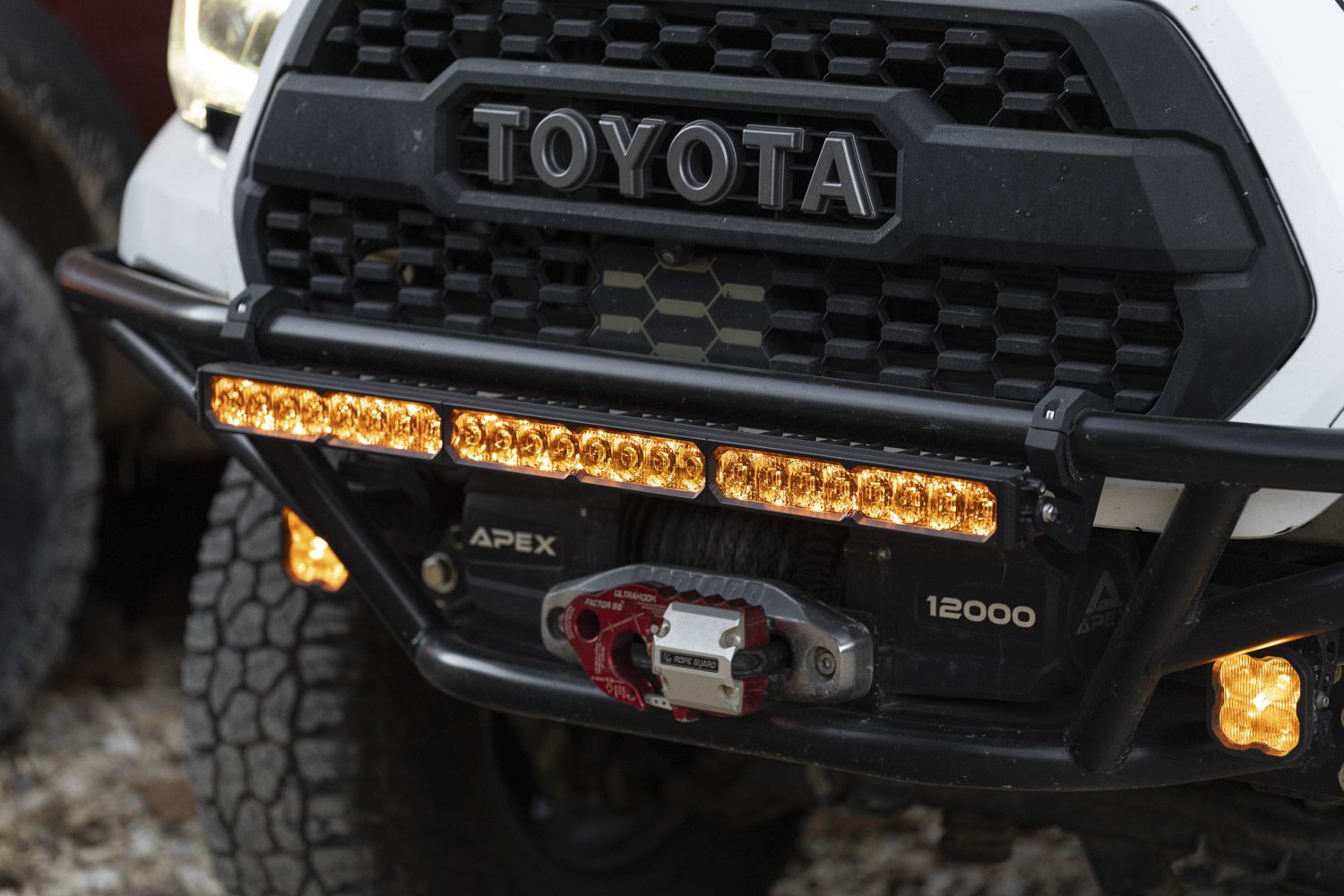
Table of Contents
- Tools Needed
- Mounting Instructions
- Wiring Instructions
- SmartSelect Programming
- Questions About the Install?
- Shop Stage Series Lightbars at Ess K Customs
Tools Needed
- 10mm socket or wrench (lightbar mounting screws)
- 1/2-inch socket or wrench (mounting hardware)
Mounting Instructions
Standard L Bracket Setup (SS6, SS10, SS20)
The standard mounting method for SS6, SS10, and SS20 lightbars uses two L brackets, one on each side. This setup allows for vertical adjustment before final tightening.
Step 1 — Locate the two L brackets and identify left and right sides. Align one bracket with the threaded mounting hole on the side of the lightbar housing. Install one M6 flange screw through the bracket and into the housing. Repeat for the opposite side. Leave both screws slightly loose for rotation.
Step 2 — For each bracket: insert the carriage bolt downward through the slotted hole, place a flat washer below the bracket, add the split lock washer, and thread the hex nut. Do not fully tighten yet.
Step 3 — Position the lightbar and bracket assembly onto the desired mounting surface. Pass the carriage bolts through the surface or mounting accessory. Center the lightbar and verify clearance. Snug nuts just enough to hold position while allowing adjustment.
Step 4 — Rotate the lightbar within the L brackets to set the desired vertical beam angle. Slide the brackets as needed to fine-tune left-to-right positioning. Final aiming should be done on level ground.
Step 5 — Tighten the M6 screws securing the L brackets to the lightbar, then fully tighten the nuts securing the brackets to the mounting surface. Tighten evenly on both sides.
TIP: Perform final aiming at night with the lightbar powered on before fully tightening all hardware.
Standard L Bracket Setup (SS30, SS40, SS50)
SS30, SS40, and SS50 lightbars use a larger L bracket system with two M6 screws per side to support the increased size and weight.
Step 1 — Position one L bracket at each end of the lightbar housing. Install two M6 flange screws through each bracket. Leave all four screws slightly loose for aiming.
Step 2 — For each bracket: insert the carriage bolt through the slotted hole, add flat washer, split lock washer, and hex nut. Do not fully tighten.
Step 3 — Position the assembly onto the mounting surface. Verify clearance around the housing, wiring, and cooling fins. Snug enough to hold while allowing adjustment.
Step 4 — Rotate the lightbar for vertical aim. Adjust left-to-right using the bracket slots. Final aiming on level ground.
Step 5 — Tighten all M6 screws and mounting nuts evenly on both sides.
TIP: Having a second person assist during aiming and tightening makes installation easier for these larger bars.
Flush Mount Setup (SS6 Only)
The SS6 Flush Mount Bracket Kit is designed for panel-style installations where the lightbar mounts behind a flat surface such as a bumper, bed panel, or valance.
Step 1 — Print the official drilling template at 100% scale. Cut out the dotted lines including the two outside holes. Confirm your mounting surface is flat with at least 2-1/8" x 6-7/8" of usable area and minimum 3 inches of depth behind for the lightbar and harness. Tape the template to the surface.
Step 2 — Mark the two drill hole locations and center cutout area. Remove the template and place the included gasket over your marks to verify alignment.
Step 3 — Cut along the marked center section. Drill the two mounting holes to 5.5mm. File any rough edges so the housing fits cleanly through the opening.
Step 4 — Attach the gasket to the backside of the flush bracket. Insert the lightbar from the front side. The bezel should sit evenly and flush against the panel.
Step 5 — From the rear, position the bracket, align mounting holes, and install the included hardware. Tighten evenly. Do not overtighten.
SS6 Classic to SS6 New Gen Adapter
If your SS6 kit includes a mounting adapter bracket, install it before attaching to the primary mounting brackets. Install the included set screws in the center mounting position on both sides. Position the adapter bracket and secure with the included Torx screws in the top and bottom mounting holes. Then mount to the main bracket as outlined above.
Wiring Instructions
SS6, SS10, and SS20 lightbars have an integrated Deutsch-style connector on the back of the bar. Larger bars (SS30, SS40, SS50) use a DTP (Deutsch Terminal Power) connector with a wire lead coming out the side.
Relay and Power Setup:
- Mount the relay near the battery or main power terminal
- Connect the red power wire to the positive battery terminal
- Connect the black ground wire to the negative terminal or a factory grounding point
Method 1 — New Switch: Mount the included switch in the cabin. Route switch wiring through the firewall following the factory harness path. Drill a 3/4" hole and mount the switch. Connect with the red wire in the center position.
Method 2 — OEM Auxiliary Switches: An extra wire pigtail is included. At the white connector, unplug the switch wires and connect the pigtail instead. Using the butt connectors, crimp the yellow wire (main LED power) and blue wire (backlight power) to your OEM auxiliary switch leads.
Route output wires to each LED, avoiding moving parts and heat sources. Plug the connector into the lightbar and test thoroughly.
NOTE: This lamp draws high current. If not using a Diode Dynamics harness, use 16 AWG or larger for main power/ground and 18 AWG or larger for the backlight.
SmartSelect Programming
SmartSelect lightbars feature built-in programming for main beam and backlight. Programming uses simple power cycles — each must be deliberate with approximately one second between each ON press.
Main Beam Programming (SS30+ Only)
SmartSelect allows control over inner sections only, outer sections only, or full bar operation.
- Start with the main beam OFF
- Turn ON and OFF four times, spacing each about one second apart
- On the fourth cycle, the bar enters programming mode
- Continue cycling to scroll through available modes
- When the desired mode appears, leave the main beam ON
- After several seconds, the selection saves automatically
Backlight Color Programming
SmartSelect backlights offer White (default), Red, Blue, Green, Purple, Yellow, Amber, and Teal.
- Start with backlight power OFF
- Cycle ON and OFF three times within three seconds
- After the third cycle, the backlight enters programming mode
- Continue cycling to scroll through colors
- When the desired color appears, leave the backlight ON
- After five seconds, the color saves automatically
Backlight Color Reset
If multiple SmartSelect products are on the same circuit and colors become unsynchronized: enter programming mode, cycle through all colors twice (at least sixteen total cycles), then leave ON for five seconds to save. All connected lights reset to White.
Questions About the Install?
If you run into any issues during the installation, contact Ess K Customs — as an authorized Diode Dynamics dealer, we're here to help.
Shop Stage Series Lightbars at Ess K Customs
Ready to add a Stage Series Lightbar to your build? As an authorized Diode Dynamics dealer, Ess K Customs carries the full lineup with genuine products and full manufacturer warranty.
Browse Stage Series LED Light Bars at Ess K Customs →
This install guide applies to Diode Dynamics SKUs: DD8180–DD8275, DD8375–DD8433, DD7781–DD7788, DD8644–DD8659, DD8781, DD8801, DD8815